
Unlike the other 3 networks, O2 publicly publishes where sites are located in the UK (although this is also the case for Germany too and how we initially found it) and you’re actually even able to search specific cell IDs too which allows you to find out where a specific cell is located.
All search queries on this page work with the O2 coverage checker website, O2 My Network app & the Giffgaff coverage checker.
Searching by site ID
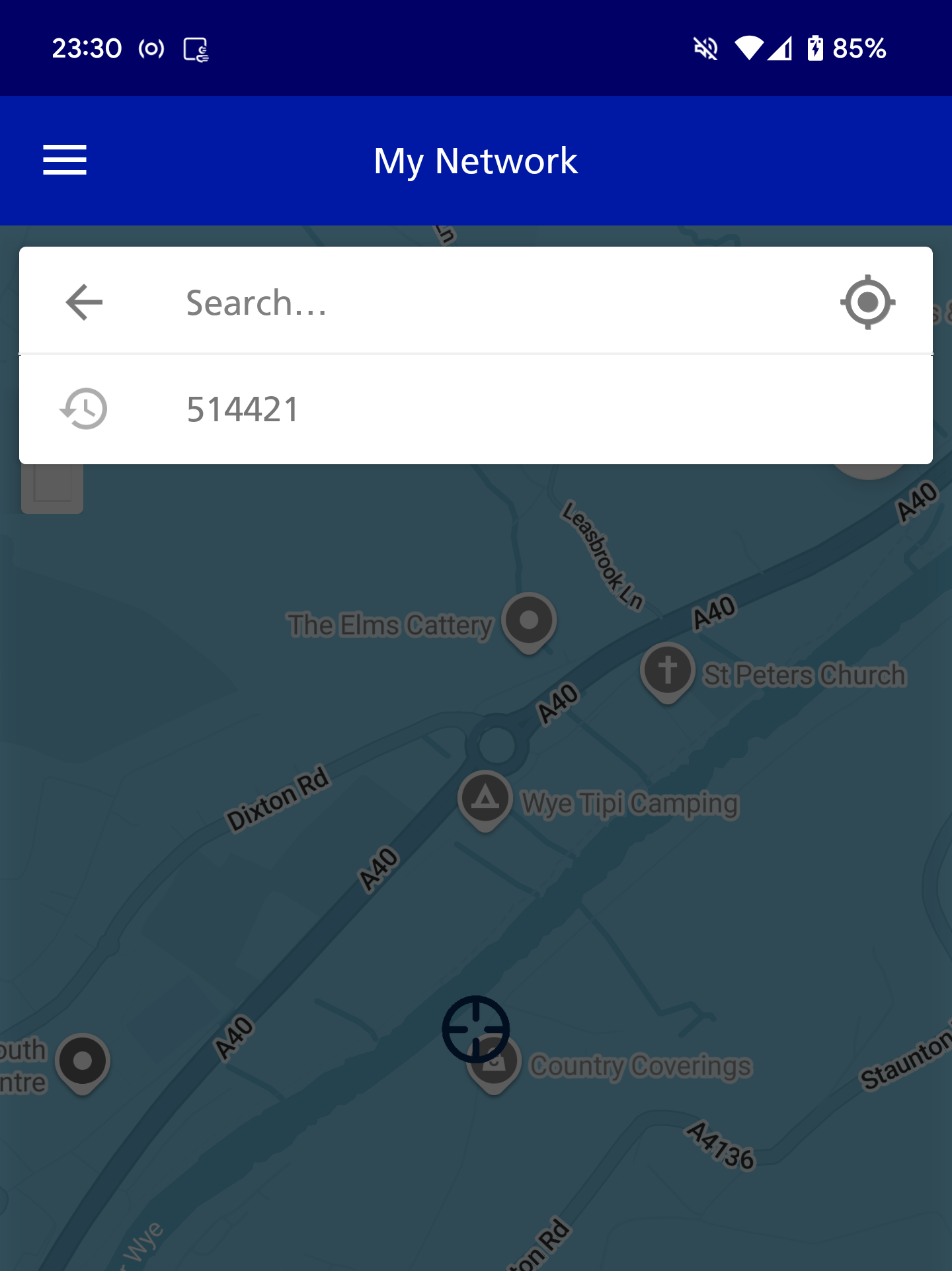
First of all, you can literally just search by the site ID if you know it. For example, searching 514421 will take you to an O2 site off the A40 in Monmouth.
Searching by cell ID (2G and 3G)
If you don’t know the site ID, you can search by the cell ID. For 2G and 3G, this should be a 5 digit decimal number (including the sector ID). For our test site in particular, this would be 12601 for 2G on the first sector.
Note: If you’re searching for a site that doesn’t have a 5 digit decimal number here, put as many 0’s as necessary at the start to make it 5 digits. For example, in the step below for cell ID 6573 in Blaenporth in Wales, you would input
cell:06573.
We can then search this on the app or website by inputting cell:xxxxx (replacing xxxxx with the cell ID).
You should see a list of site IDs when you’ve done that and with trial and error, you should be able to find the correct site.
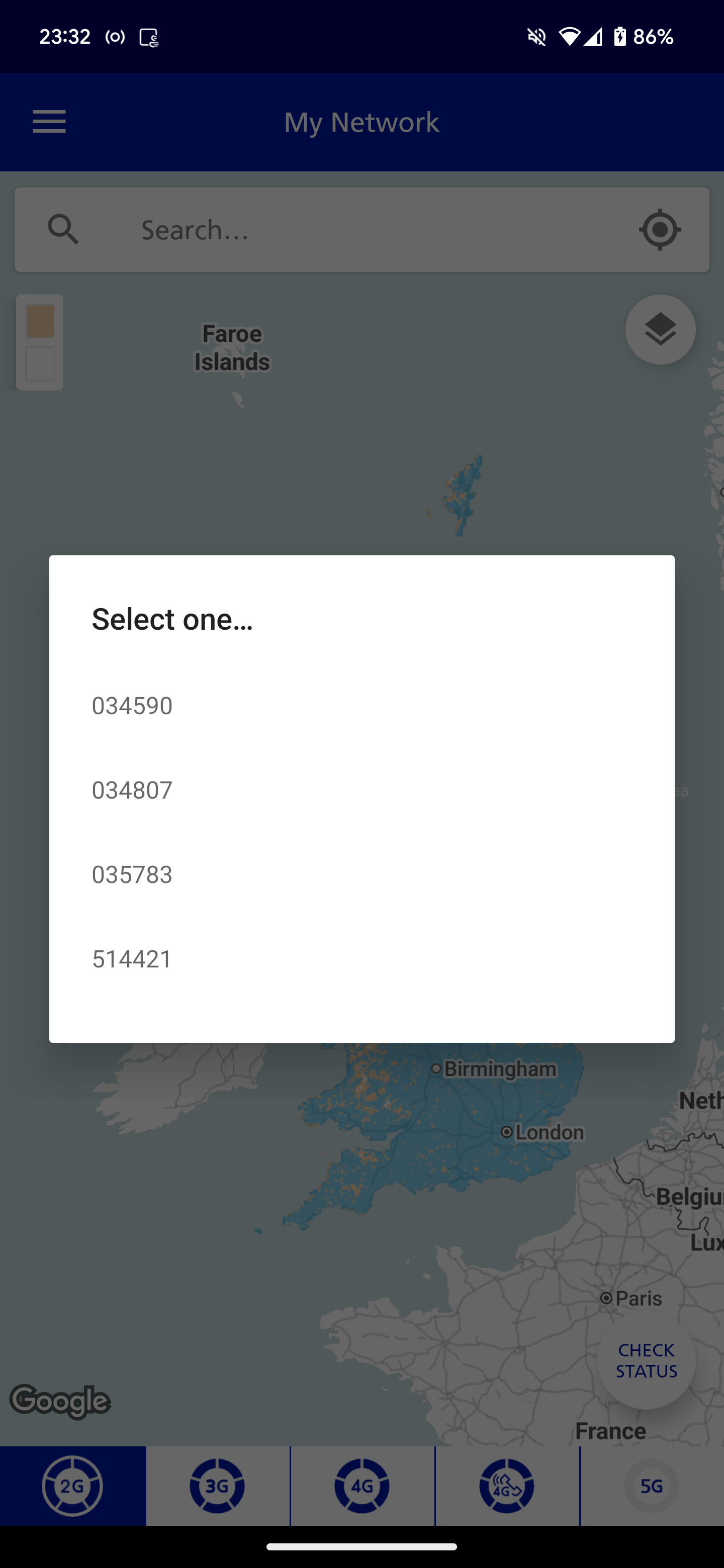
Generally, 5xxxxx site IDs are ones in Vodafone host areas (which is essentially majority of the West of England, majority of Wales and parts of Western Scotland). Anything that doesn’t start with 5xxxxx means that it’s an O2 host area (Northern Ireland, large parts of Scotland and East of England).
Searching by cell ID (4G and 5G)
Like 2G and 3G, we can also search by the cell ID for 4G and 5G. However this works slightly differently.
We still utilise the cell ID (unfortunately we don’t utilise the eNB/gNB number here), but instead we have to format this differently. We have to input our cell ID in hexadecimal due to the way O2 handles this.
Note: If you’re looking for a site to convert decimal to hexadecimal, I would recommend this one.
Note: Make sure to capitalise the letters in cell ID when searching, else it won’t find anything.
Note: O2 4G 2600 on sectors 215, 225 & 235 currently do not get recognised by My Network. Additionally 5G 3500 on sectors 118, 128 & 138 do not get recognised.
For example, cell ID 747630 (or eNB 2920 on the 110 sector), would correspond to B686E in hexadecimal. We would then input this into the My Network app or website as cell:B686E.
Since originally publishing this article on GitHub, we have been able to find another filter that you can input into the coverage checker. This is primarily helpful to query 2G/3G sites in a specific LAC zone though. I will cover this new finding on the new page.
Original finding of the cell ID trick is thanks to the work of myself and @numerofoxtheglaceon_. Thumbnail image for this article came from the O2 coverage checker through mastdatabase.co.uk.
Leave a Reply