
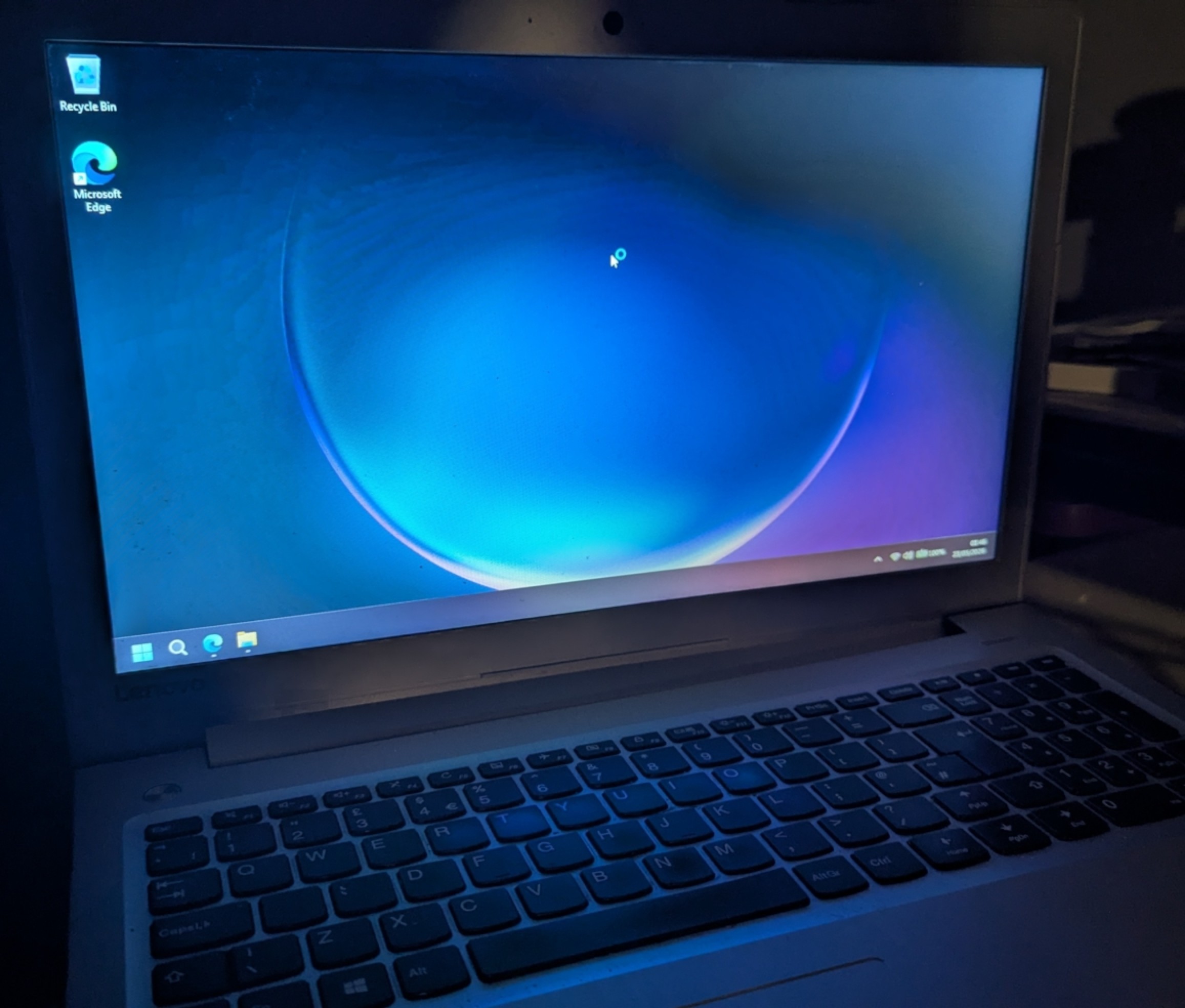
Out of nowhere, my Acer Nitro 5 ended up dying completely unexpectedly over the weekend leaving me without a computer to work on a college project. I had one solution: attempt to work on the project by installing Windows 11 on my old laptop and this is me documenting how all that went: because I’ll be honest, the way I installed it was a complete mess. This article has been entirely written on that laptop.
For a few years now, my old Lenovo Ideapad has been on Linux Mint. I’ve hardly used it, but it functioned great as a Linux computer (mostly pretty smooth) and it gave me an opportunity to mess with Linux on real hardware. I would have kept it on Linux Mint if I didn’t have a college deadline to get my final project edited in Adobe Premiere Pro.
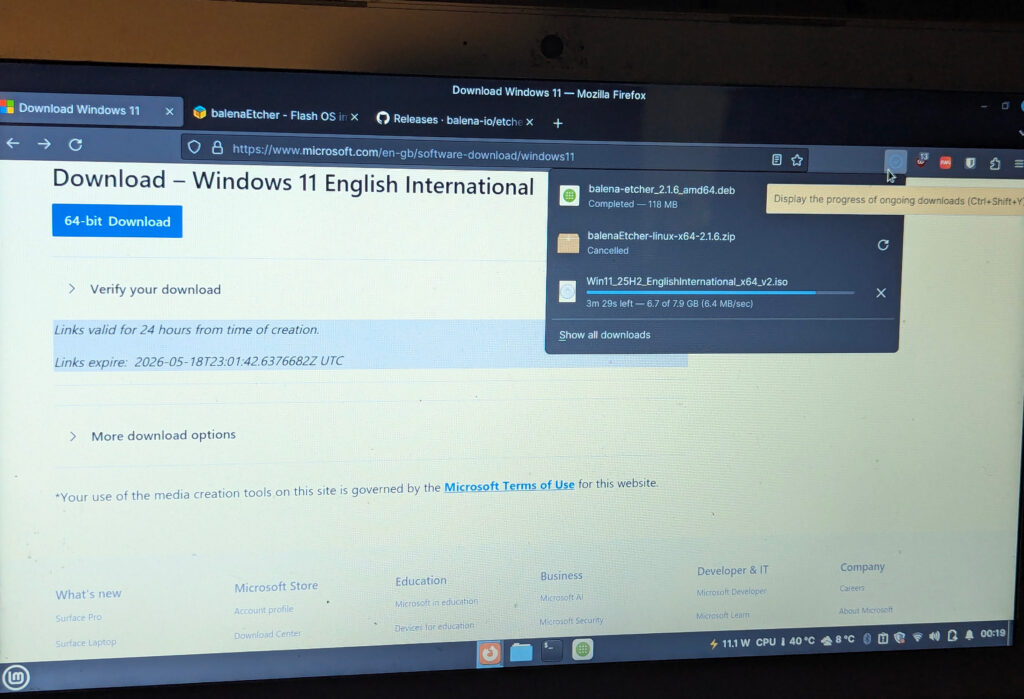
As all new Windows installs start, I started by grabbing the latest 25H2 ISO from Microsoft alongside balenaEtcher. The latter is a tool for flashing ISOs to a drive, I think it is the best option available for Linux machines (for Windows, Rufus is typically recommended (hell I had one of my lecturers recommend it earlier although it would not have been helpful here).
Once both the ISO and Etcher downloaded, I opened the Debian install file I downloaded for Etcher (it just seemed slightly easier to deal with for me) and installed it to my computer. I then opened the app, connected a USB drive that I could format and picked the ISO I wanted to flash.
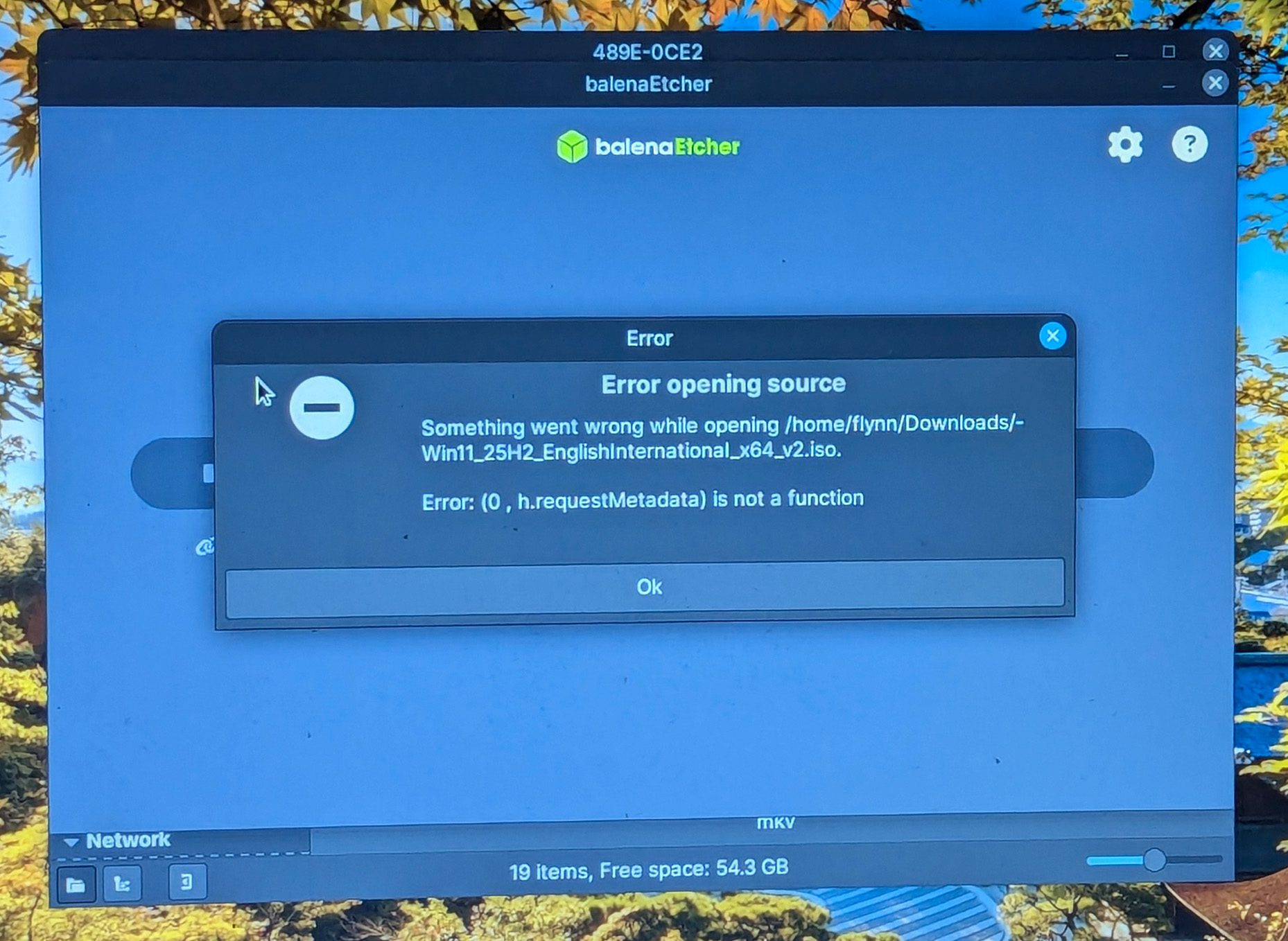
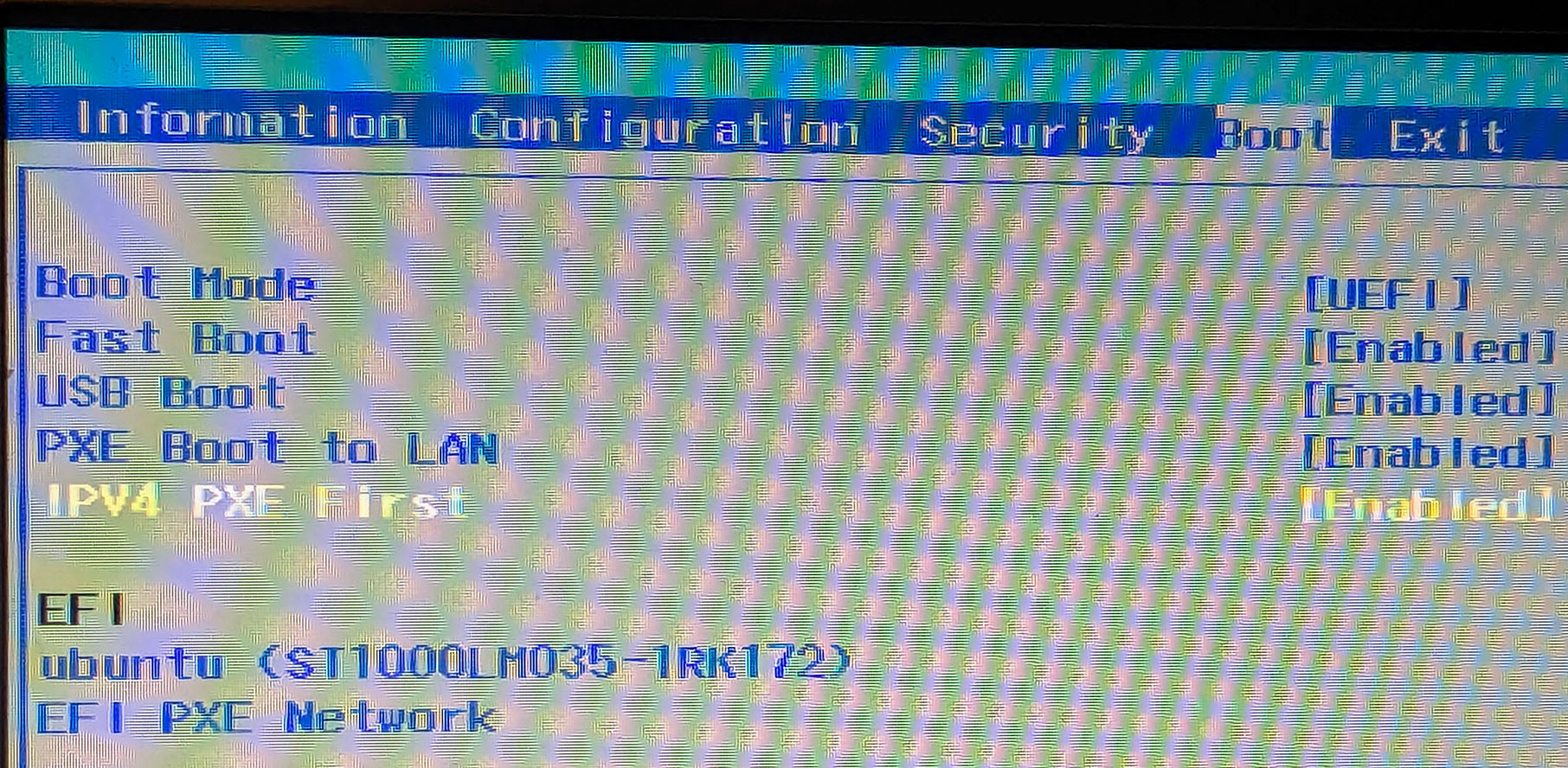
Surely that would be everything I would need to do and surely I would soon have a copy of Windows 11 25H2 on my old laptop right? Wrong. Etcher completely rejected my ISO file and I couldn’t figure out any solutions to get it to work. I could work with that because Linux Mint’s Disks app (an application for managing disk drives) allows you to write disk images to a drive. I tried that, it flashed alright but when I went into my BIOS, it wasn’t getting picked up at all. I also tried with another bundled tool with Linux Mint, the USB Image Writer (not sure if it’s actually called that) but that yielded the same results.
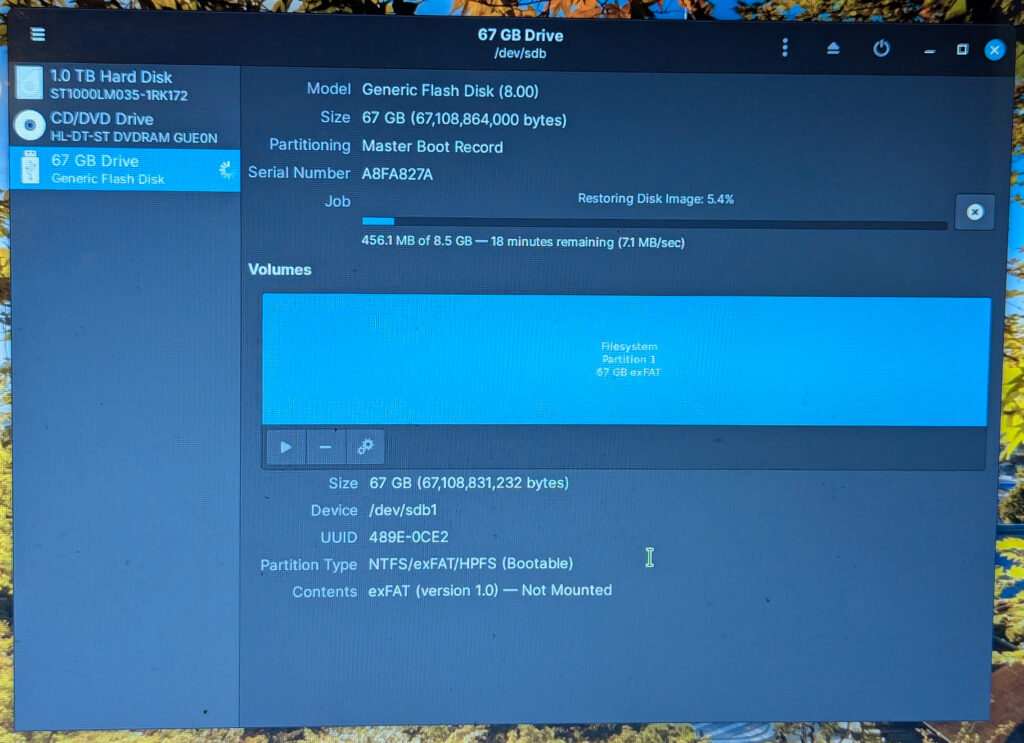
I do wonder whether the issue was the USB drive I was using though. It is a bit odd that it is showing up as 67GB and it just is a random no name drive (not a drive I bought but just one that was laying around with nothing super important). It should just show as 64GB in Linux if it was a regular 64GB drive (with it showing around 59GB in Windows if my rough calculations are right).
Anyways, I ended up pivoting to another solution. I had Ventoy on another USB stick (which I initially used to install Linux Mint) and I wondered if I can use that to boot to the USB with 25H2. It turns out that was a no, but one thing I learnt is that you can boot ISO images from another drive. Before flashing the USB, I did copy an ISO of 25H2 anyways to an external drive in case I ever needed it so I booted the ISO from that drive.
This is the part where I get to my utter stupidity that frankly cost me hours and was an incredibly absurd decision of me to make. Windows wasn’t allowing me to install to the drive I wanted to install and for some reason I was worried of overwriting my hard drive which had all my files for my college project on (it is 1TB, just like the internal storage in the laptop). So instead: I exited setup, unplugged my hard drive and plugged in the drive I flashed Windows 11 25H2 to. I wasn’t able to open 25H2 setup, but I had a copy of 22H2 on my Ventoy drive so I decided to boot from that and try to deploy the WIM image (I ended up following a random GitHub guide to do it) from what I thought was the 25H2 drive.
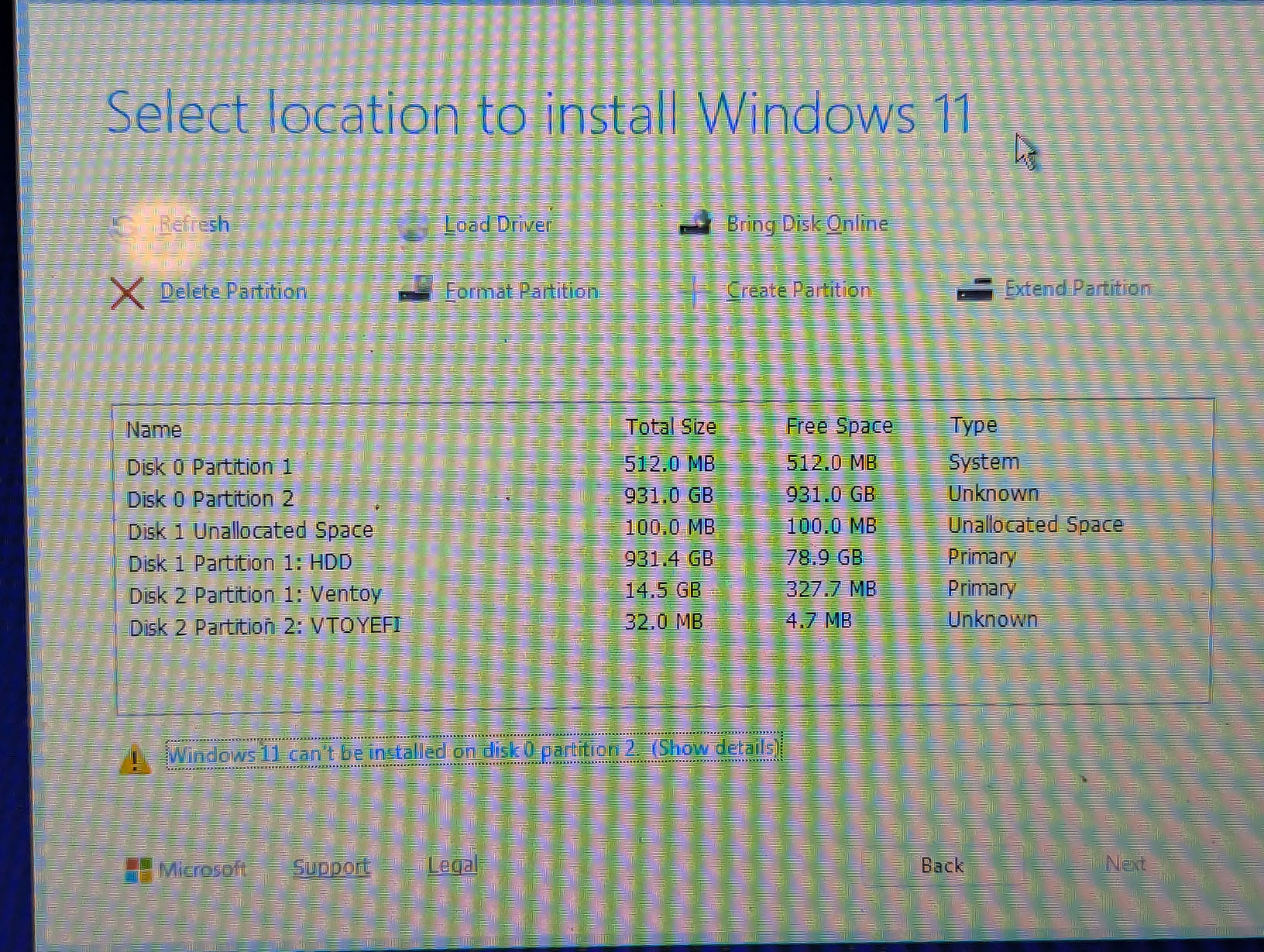
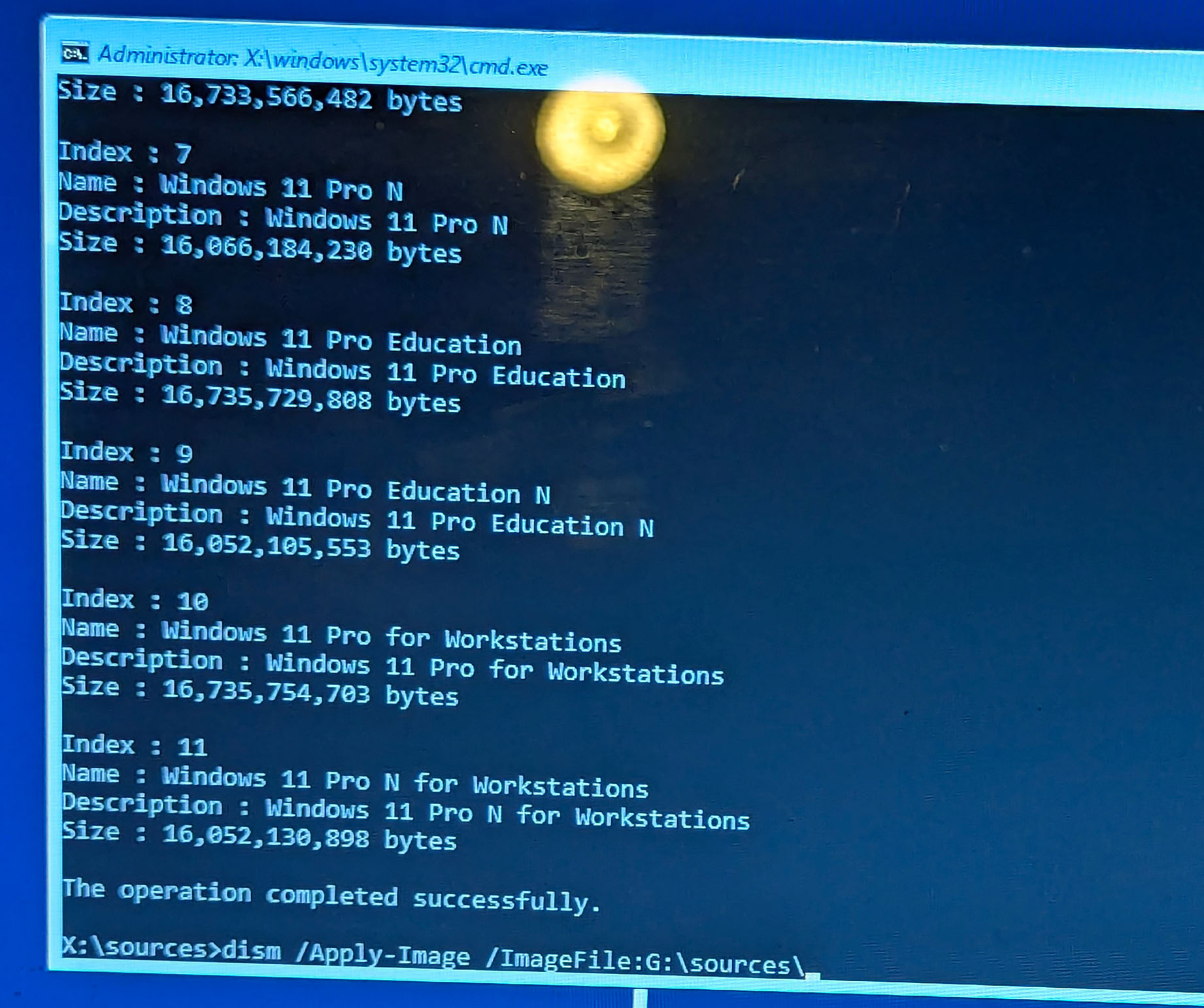
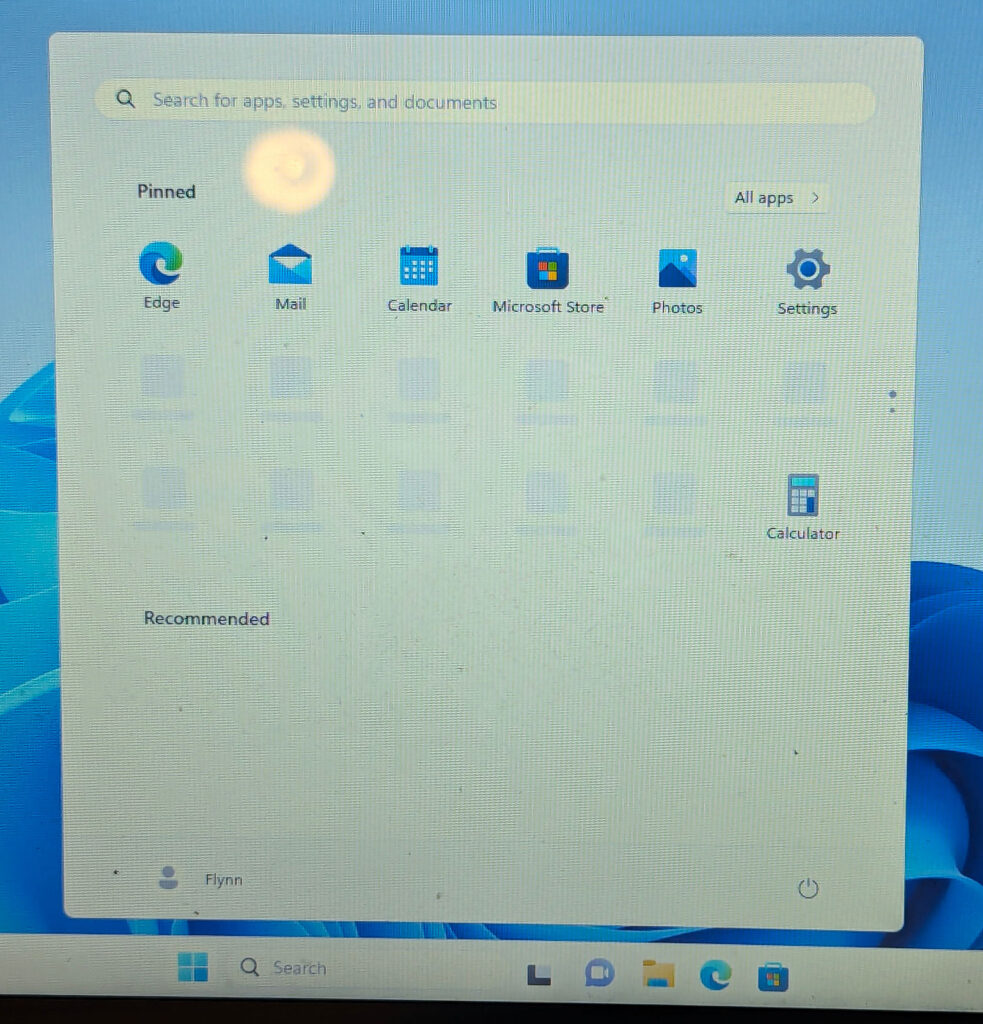
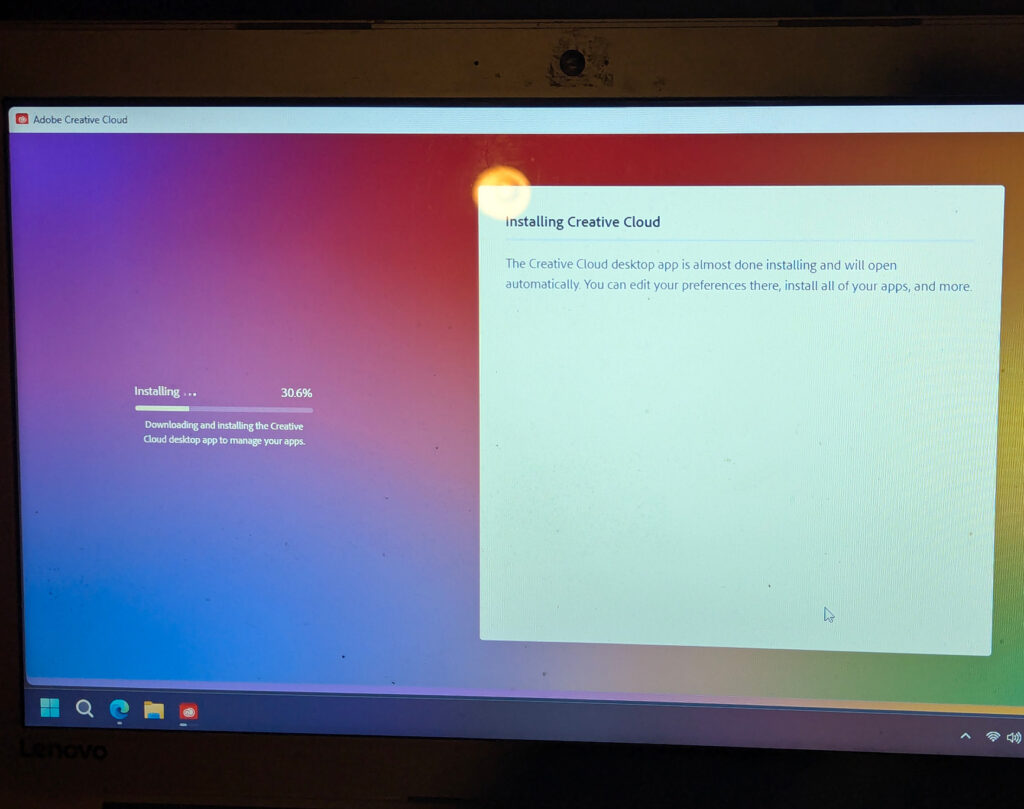
Eventually the WIM image deployed, I was greeted with Windows 11 setup and used the latest Microsoft account requirement bypass (I have one but I preferred not being linked with my account) and the desktop welcomed me into Slopsoft’s masterpiece… oh wait I meant Microsoft. Except… the Windows 11 desktop didn’t quite look how it should. I think the most telling thing was the Teams chat icon instead of Copilot, but I did not pay any attention to that at the time. After doing a quick round of updates to get graphics drivers (since it had to grab drivers from Windows Update for my HD 620 iGPU), I started installing Adobe Creative Cloud which gave me the first signs that this was an awful idea.
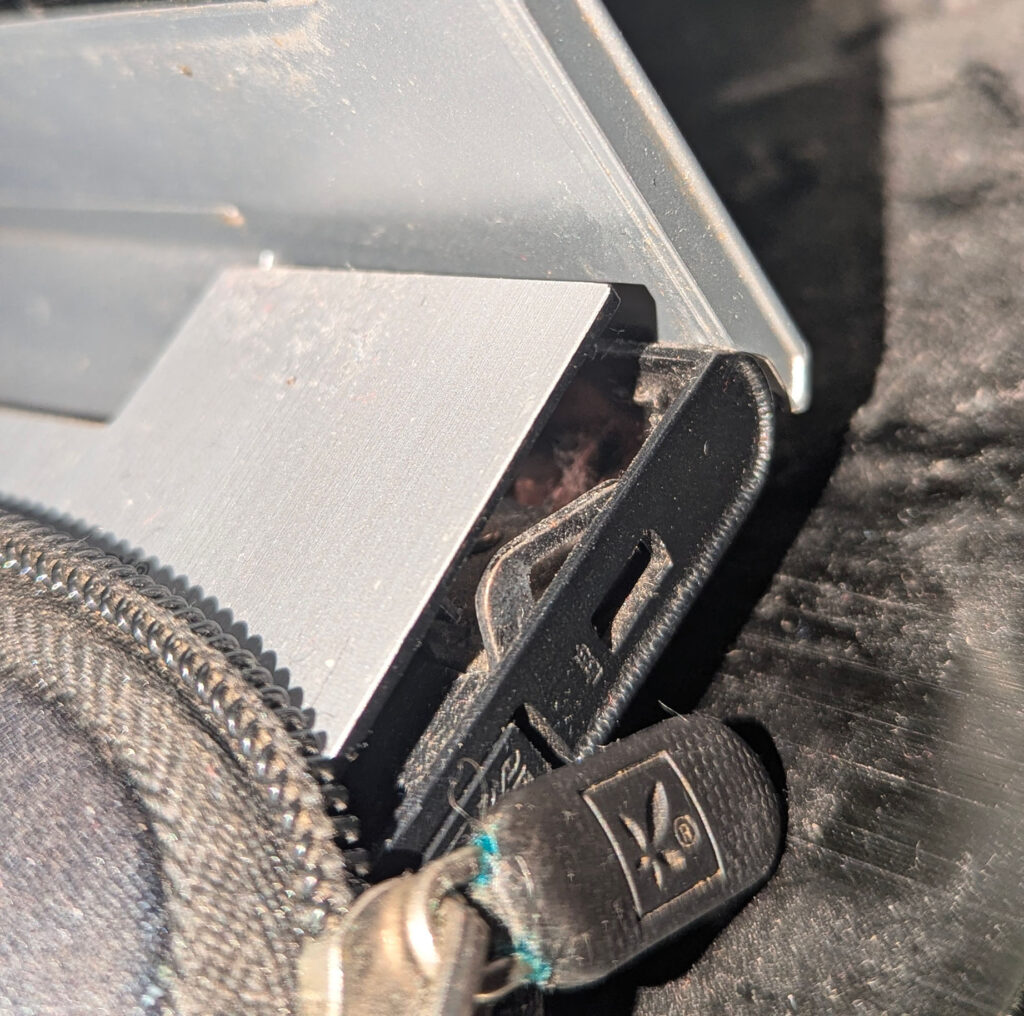
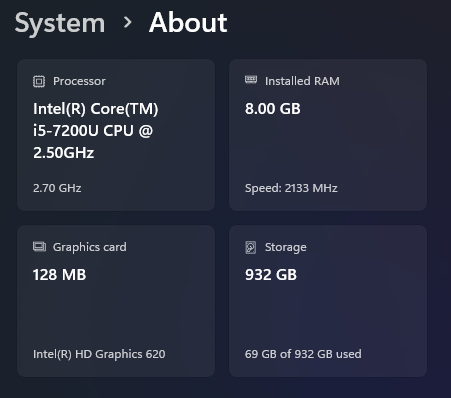
I should probably tell you more about the specs of this laptop I was actually installing Windows 11 on: it’s a 2017 15in Lenovo Ideapad. My system got kitted out with a Core i5-7200U, 8GB of RAM, a 1366×768 TN screen and a 1TB HDD… yeah that’s right. All the other specifications are fine but genuinely using a HDD these days can be pretty dreadful. Hell it was when I last used Windows on the machine. The main reason I moved off this was not the HDD though, I ended up causing damage to the hinge through some rage at a video game…
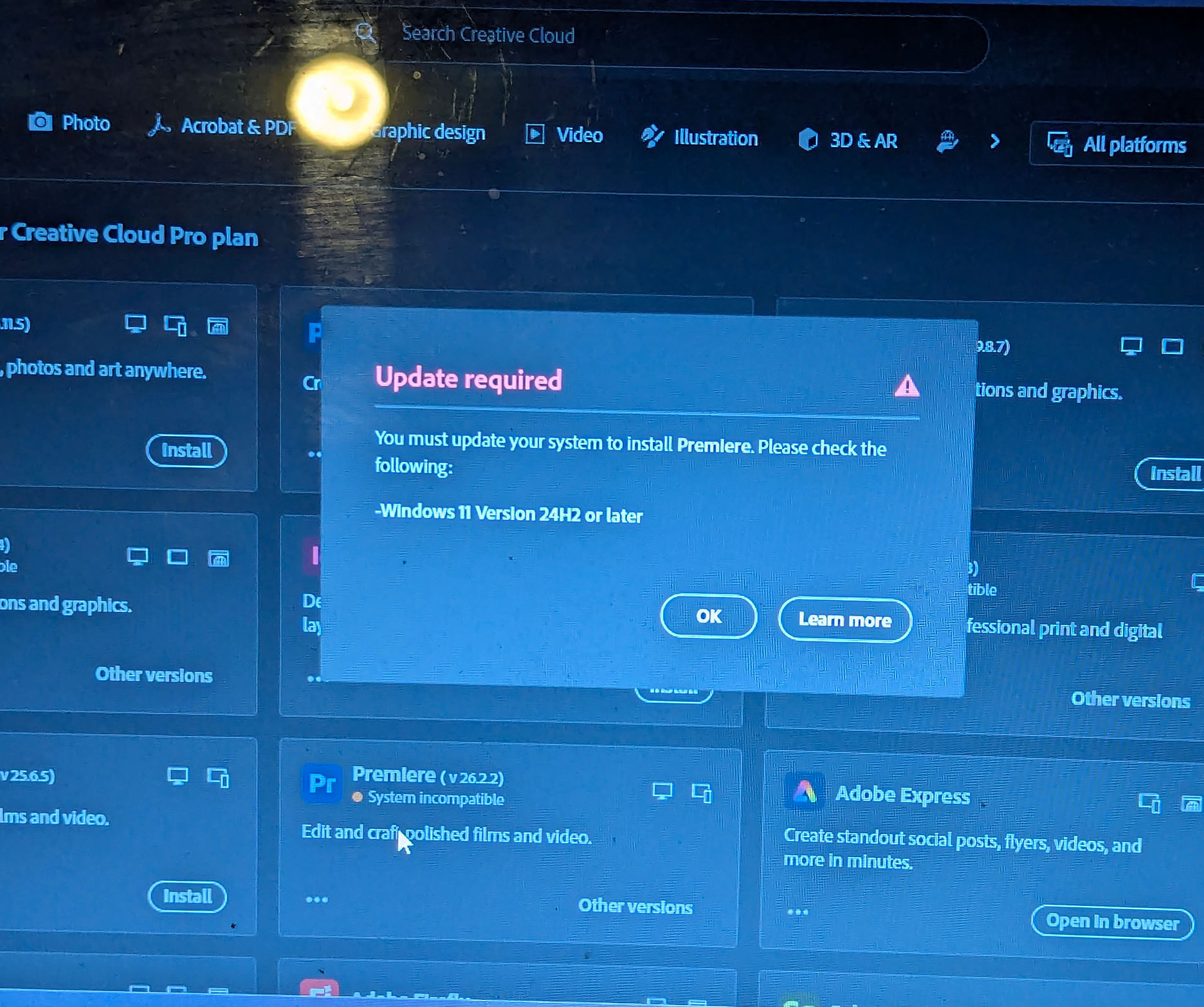
Anyways back to my installation. Eventually Creative Cloud finished installing and I was going to install Premiere Pro (although that would have been a crazy idea at like 3:30am, yes that was how late I was up trying to get this set up). Except… Premiere Pro required 24H2 or newer. I thought I had installed 25H2 but a quick winver check confirmed I was on 22H2. I couldn’t be bothered to do anything else for the night, so I would sort it out the next day.
I started by downloading the Windows 11 Upgrade Assistant, but that refused to run because I was actually using an incompatible device. Whilst I did not see that in my installation because of the way I installed it, Ventoy actually bypasses all of the typical checks Windows 11 usually does before install. The only thing actually making my computer incompatible with Windows 11 is just that my CPU is 1 year too old… yeah that’s it. Either way, it was easily bypassable using a tool on GitHub.
It started doing its thing but then I was reminded that I literally have an ISO on my hard drive that I could just install updates from which would probably be faster right? I left it for a bit over half an hour and it ended up getting stuck on 46% on getting updates, a step that is only supposed to take a few minutes (although I was later informed it can take a few hours).
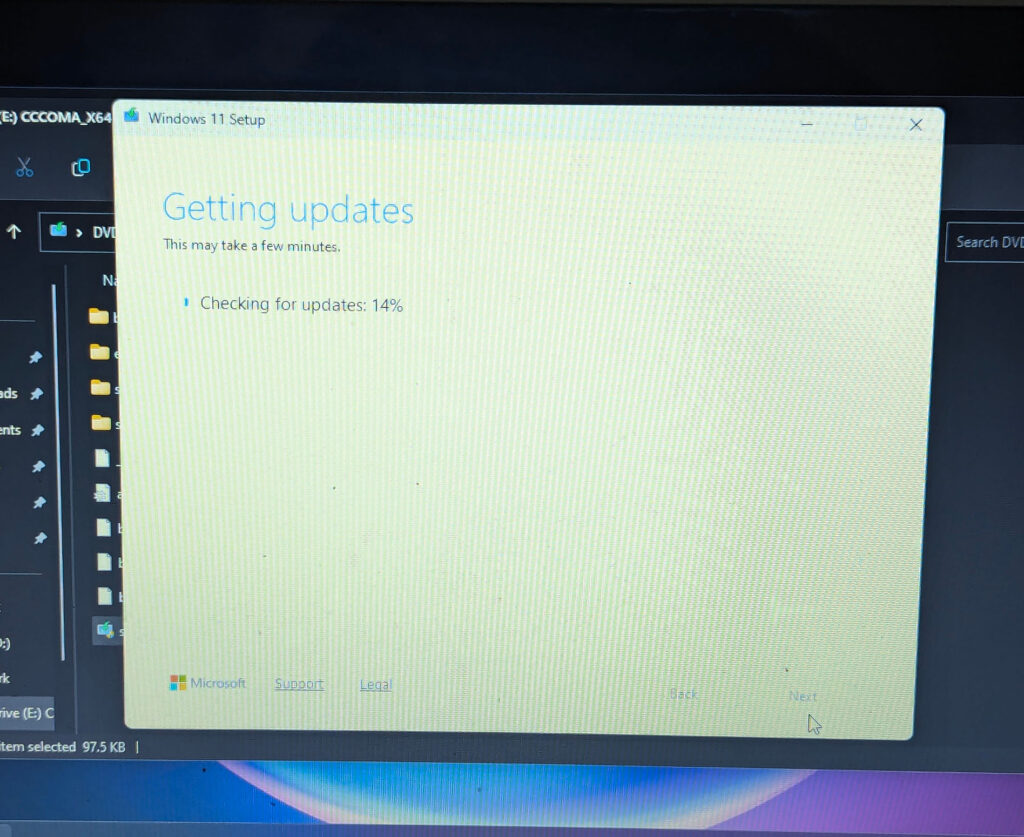
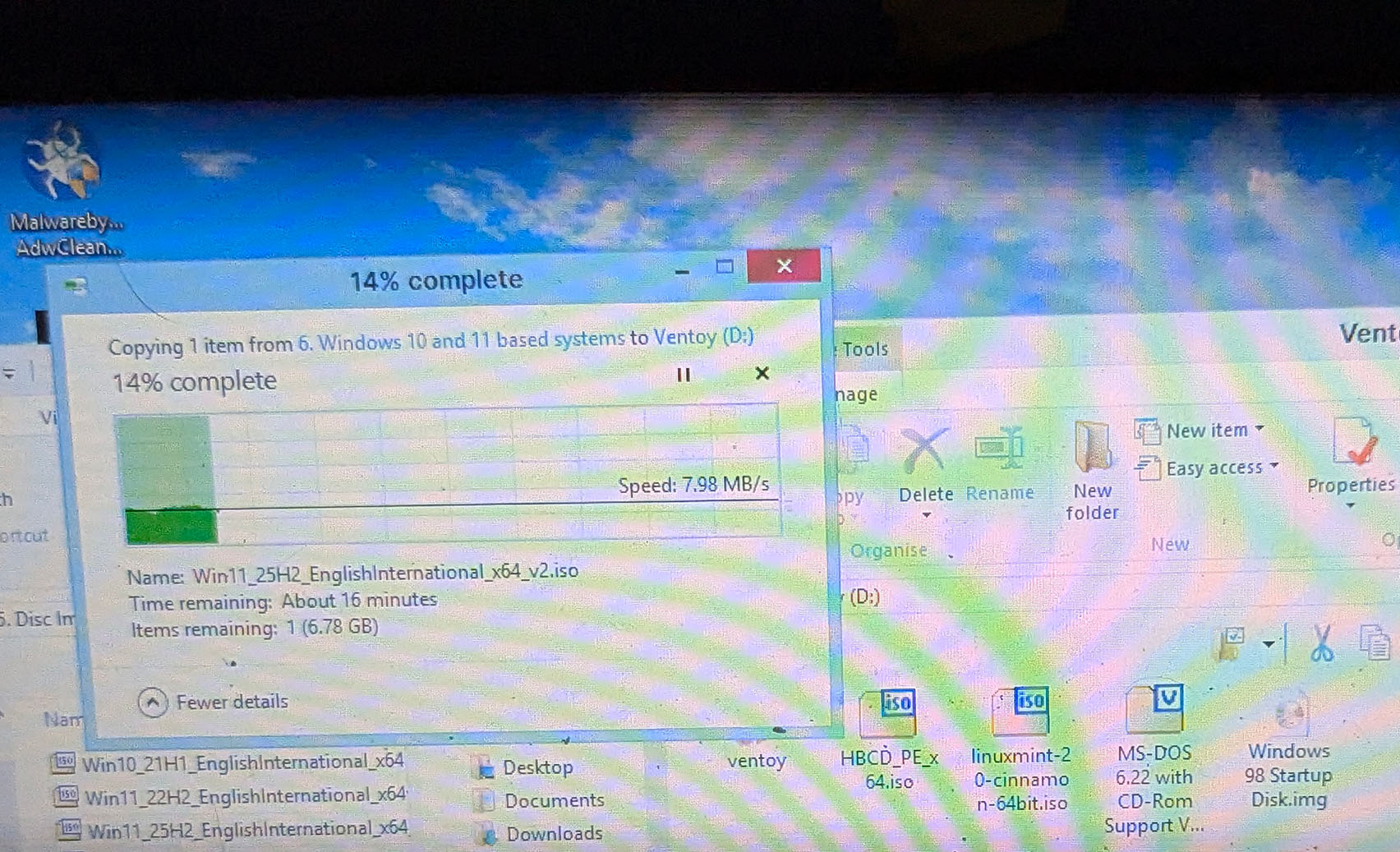
So I ended up replacing my 22H2 ISO and a Windows 8.1 ISO with the 25H2 ISO on my Ventoy drive and I reinstalled Windows 11. I ended up copying the ISO over on an old HP Stream of all things since I thought it would be faster.
After that, there’s not really much to say. The install went smoothly and finished within about 40 minutes. I installed the drivers that needed to be installed & any other updates (which was done at a snails pace, I had one update take an hour to finish) and installed Premiere Pro. Once Premiere Pro installed, it opened just fine although even that takes 15 minutes! Browsing around the timeline is not horrible though, the main issue is genuinely the awful hard drive in this computer. It just is not a pleasant experience.
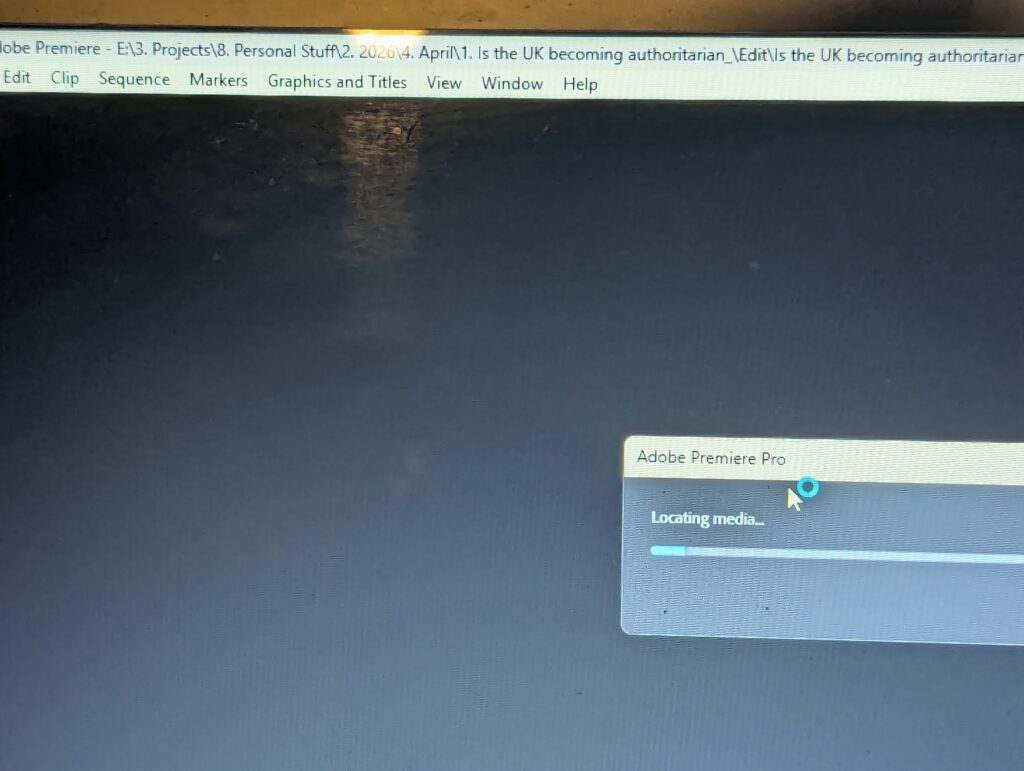
I did manage to do a bit of editing on there, but let’s just say the situation changed again later on since I was lucky enough to be able to borrow a MacBook Pro (M1 Pro 16″, 16GB+1TB) from my college and it was running macOS 12 for some reason or another (so I had to do some more tinkering work)…
Anyways I should probably close this off now. I’d like to thank a few of the staff members internally at the Pretendo Network Discord server for helping me out here (we have a pretty cool team) with getting Windows 11 set up and navigating around issues (particularly ErdbeerbaerLP, kip and Thomas). Oh and if they’re reading this at all, shoutout to Dan and Tom.
If you liked this article, I would recommend sharing it with others to boost it with other people! I’m still looking for laptop suggestions at the moment, if you have any laptop suggestions for someone who is looking to do somewhat light gaming (similar to a GTX 1050), can edit projects in Premiere Pro, has at least 1TB of storage and has a decent screen, please reply in the comments with your suggestions! Additionally, have any of you ever had a situation where your computer just dies on you?
Leave a Reply