

Throughout a lot of the work I do, sometimes I find it necessary to transfer files between devices and plugging in those devices can be annoying, especially if it’s just for a small file. Certain wireless solutions don’t always work for me given I use a Windows laptop and Android phone (plus I don’t want to have to install any apps), so that’s where Pairdrop comes in.
Pairdrop doesn’t require any special apps, just an internet connection that can access pairdrop.net. I would recommend using the unofficial client though on Android devices as it makes it much easier to share since it’ll show in the Share menu.
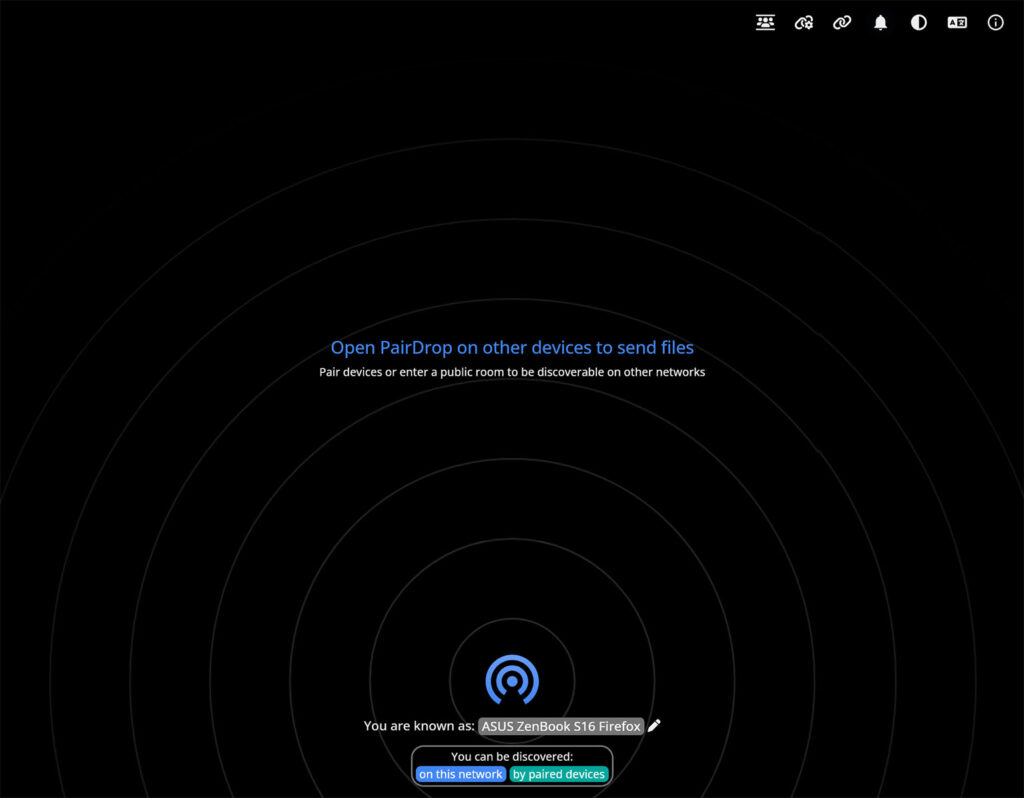
When you open Pairdrop, you’ll see a screen like this with no devices. To get other devices to pop up on the screen, there are 3 different ways you can get it to pop up. These are: devices on your network, pairing devices through a code or joining a room code. I’ll cover how to get all of these setup throughout the whole article so keep reading.
How to use Pairdrop?
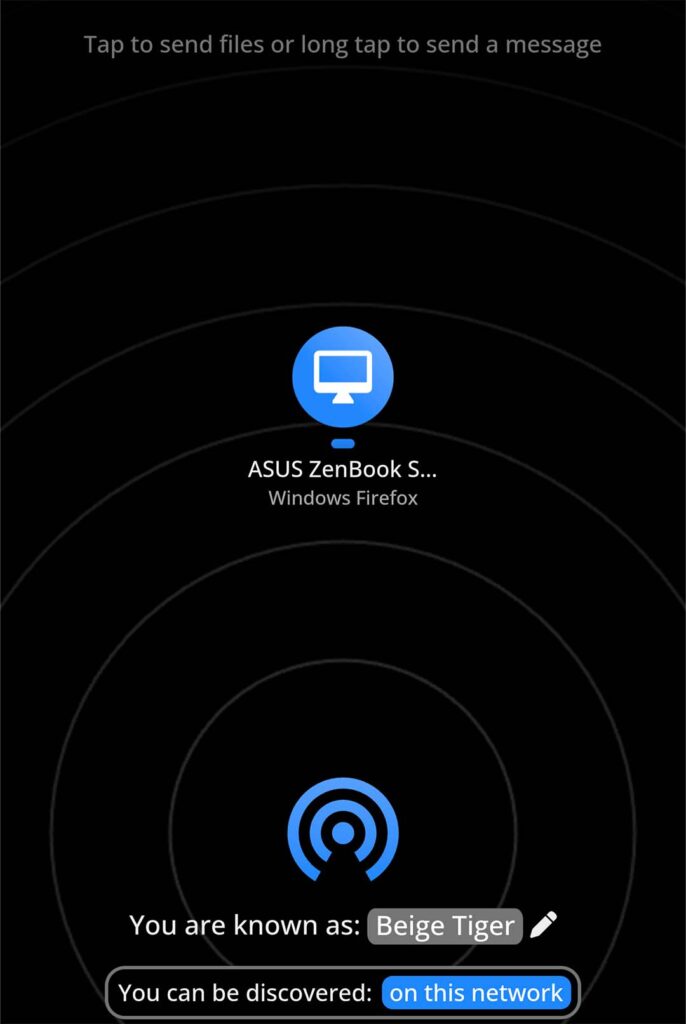
Connecting to devices on your network is the main way to connect to devices on Pairdrop (and the predecessor Snapdrop), being the simplest to set up. Just visit the Pairdrop site on another device and it’ll pop up like this.
If you just want to send a file, just tap on the device and pick the files you want to send. Then accept the files on your other device and wait for it to transfer. It really is that simple.
The simplicity of Pairdrop really is what makes it convenient, I use it when writing some of the monthly overview posts for Crossing Corner so I can get the Weekly Outlook images across to schedule a post through Moshidon. I’ve also found it really helpful when needing to transfer stuff from my phone sometimes to computers at college (it’s less annoying than sending a Teams message to myself for instance).
You can send text through Pairdrop by just right clicking on a device or long tapping it and sending the text you want to send. The other device will get a notification with the text and you can just copy it to the clipboard. I find this feature incredibly helpful for the alt text for these Weekly Outlook posts (since I strive to try and have alt text across my social media accounts on the fediverse). I find that it seems to miss new lines though when copying it to my clipboard but you might have a different experience.
Pairing devices outside of your network
It’s all great when devices are actually on your network, but what happens when they’re not connected to your network? Thanks to Pairdrop, you can share to other devices that aren’t on your network, even potentially to the other side of the world through pairing devices or joining a room.
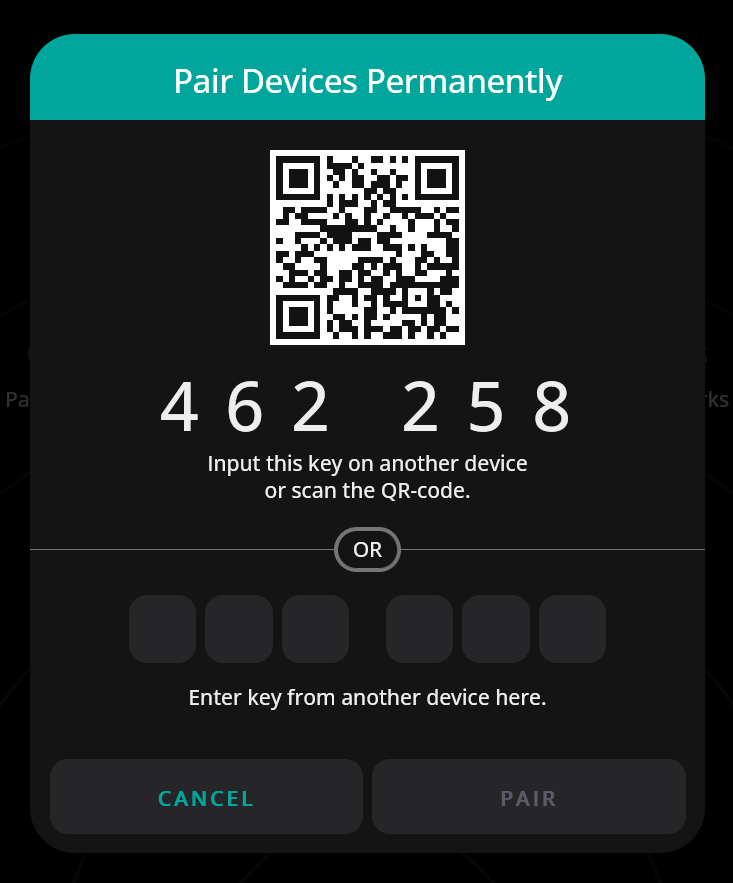
I’ll start first with pairing devices. Click the link button on both devices and you’ll be greeted with a menu like this. Enter the code from one of the devices onto the other and those devices will be paired so you can send files to each device from any network.
In addition, when you pair a device, you can auto accept any files from that device in Edit Paired Devices (it’s the link button with a cog) so you don’t have to press accept on the notification. I don’t personally make use of the auto-accept feature though.
Also another key thing to note here is that you can set a unique name for each device, which might be helpful (especially when you have a bunch of paired devices with random names). You can edit it by clicking the pen icon next to ‘You are known as: [Device]’.
Joining a room functions relatively similar in terms of the code system and you’ll stay in that room until you disconnect from Pairdrop. Rooms might be helpful if you only want to send content to a device once and won’t need to send anything to it in the future.
As you can see Pairdrop is great for all kinds of situations, even for transferring to a friend on the other side of the world! Whilst speeds aren’t going to be as fast as other solutions, the advantage to Pairdrop is the convenience, you don’t have to fiddle with settings. Just load up the site, pair a device (if you need to) and then send!
Leave a Reply