
This guide tells you how to restrict settings on Windows 10 and 11 using the Group Policy editor, or an open source app called PolicyPlus. This can be useful for locking down settings for a child for instance (say you could stop them accessing the settings for where you can download apps from).
WARNING: Despite disabling/enabling some settings work how they should, it might not work for other settings, e.g. Disabling windowsinsider seems to remove the Windows Update page entirely. Proceed at your own risk, and take notes of what you’re doing.
WARNING 2: This guide does NOT show instructions to disable settings in the legacy Control Panel app, but if you want to do some digging, you can disable those as well.
Instructions
Using PolicyPlus
- To start, download PolicyPlus from https://github.com/Fleex255/PolicyPlus/releases. Save it to anywhere you want (even an external hard drive), this application operates portably.
- After you’ve downloaded it, run it. If it asks you to get the latest ADMX definitions, press yes.
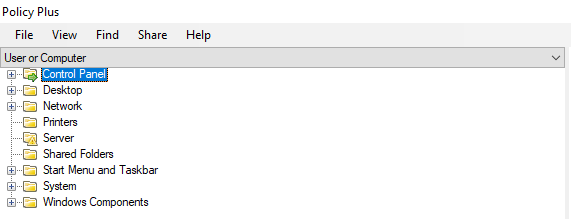
- Press the Control Panel option in the sidebar (and make sure it says User or Computer above it).
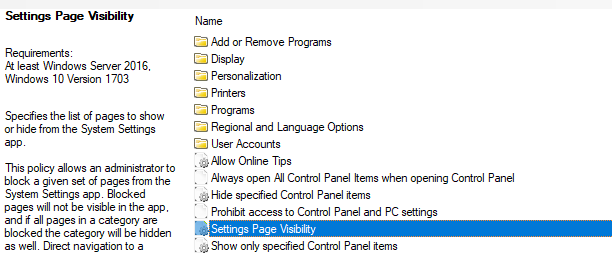
- If you look at the panel on the right, you should see an option called Settings Page Visibility, double click it.
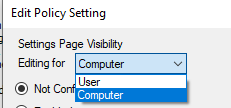
- In the dropdown box, if you’re editing for all users, click Computer, otherwise, press User if you’re editing it for the currently signed on user. If you have both settings for Computer and User, I believe User overrides it.
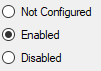
- Change Not Configured to Enabled.
- A editable box should appear below it, and you should type
showonly:if you only want specific settings to show, orhide:if you only want to hide specific settings.
- Open https://go.microsoft.com/fwlink/?linkid=2102995 in a web browser and decide which settings applets you’d like to disable or enable. Make a list of them if you can.
- After you’ve decided what you want to disable or enable, start typing them out in the text box, excluding the
ms-settings:part, and using a semi-colon to separate each setting you want to disable or enable.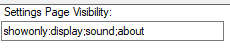
- Click Apply then OK after adding everything you wanted to.
- Press File at the top and press Save Policies.
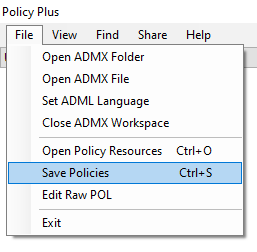
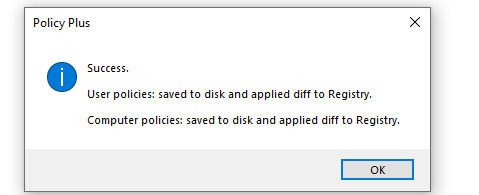
- You should receive a message saying Success. Your settings have successfully applied.
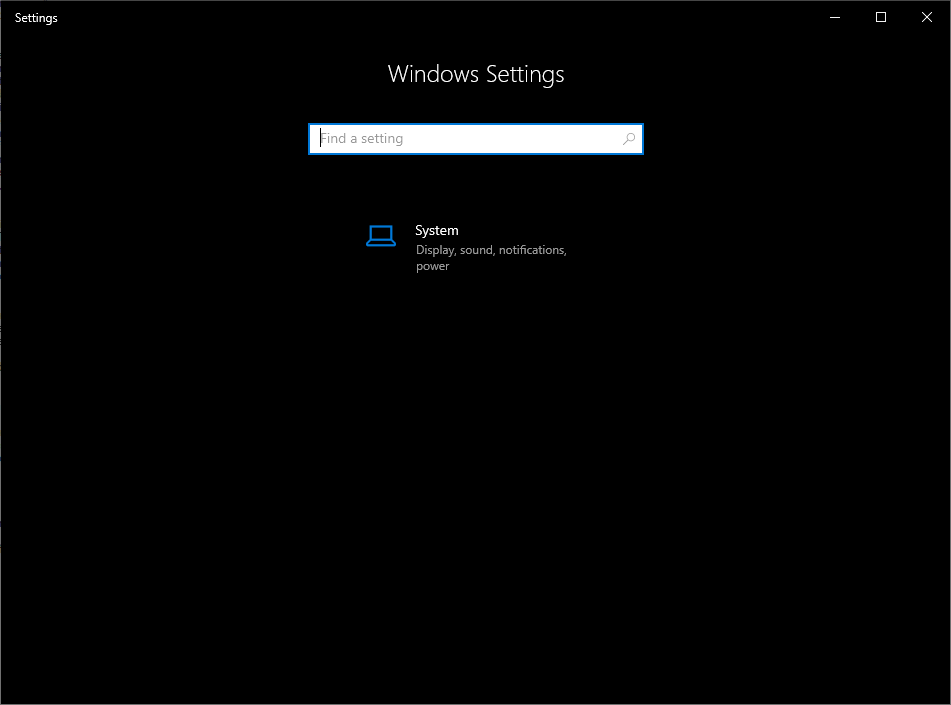
- Open Settings and your changes should have applied. If you think something is missing or not working, then you might have to enable more related components.
Using Group Policy Editor
Requirements: Windows 10 or 11 Pro edition or better, Home edition does not work with this method.
Just as a fair warning, I don’t have a computer running Windows Pro edition, so it’s just going from as far as I know.
- Press Windows key + R and type
gpedit.msc. - A windows should open with Group Policy Editor.
- Go to Computer or User settings, depending on what your changing it for and find Control Panel.
- Steps 4 to 10 should apply here from the PolicyPlus guide, then Step 13.
Conclusion
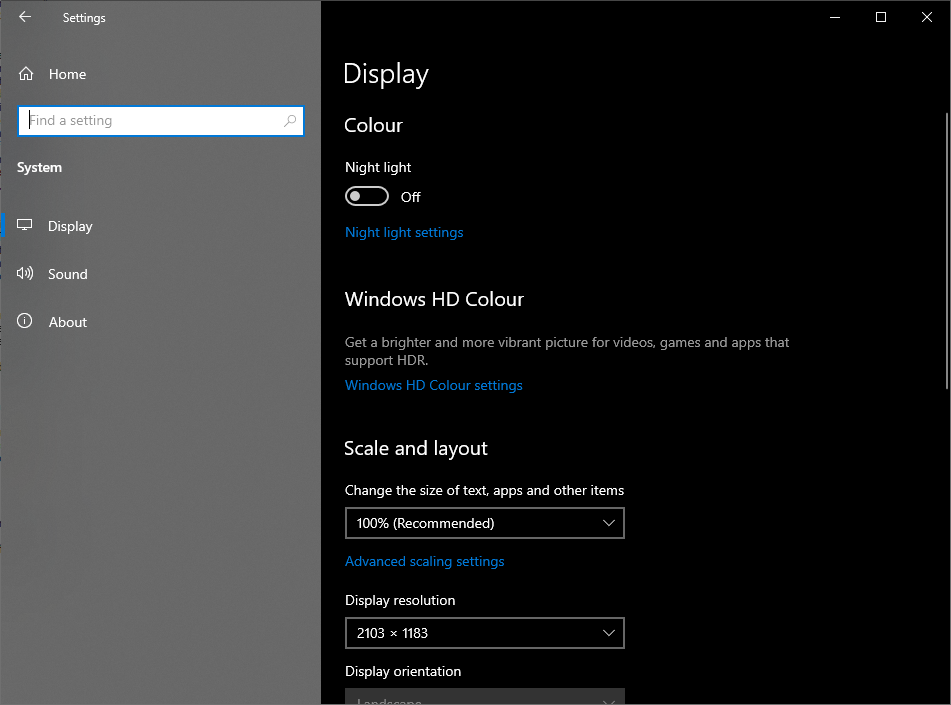
You’ve now disabled specific settings on your device from showing up in the settings panel.
Edit from 2026: It’s been a while but I think a ThioJoe article inspired me to write this. Just wanted to credit properly.
Share with a friend if this managed to help you. Thank you!
ExperiencersInternational © 2023
Leave a Reply